Live demo: scene-bench.vercel.app
SceneBench is a browser-based benchmark and inspection tool for comparing object-detection models on video clips.
It runs YOLO/ONNX models directly in the browser, lets you test them on curated scene clips, and shows what the model is doing over time: detections, confidence curves, tracking state, car tracking, health scores, dropouts, switches, and unstable moments.
Think of it as a small benchmark lab mixed with an iMovie-style timeline: scrub through video, cut interesting scenes, save favourite clips, run inference, and compare model behaviour frame by frame.
Also: this whole app was built by absolute vibe coding. I did not manually write a single line of code.
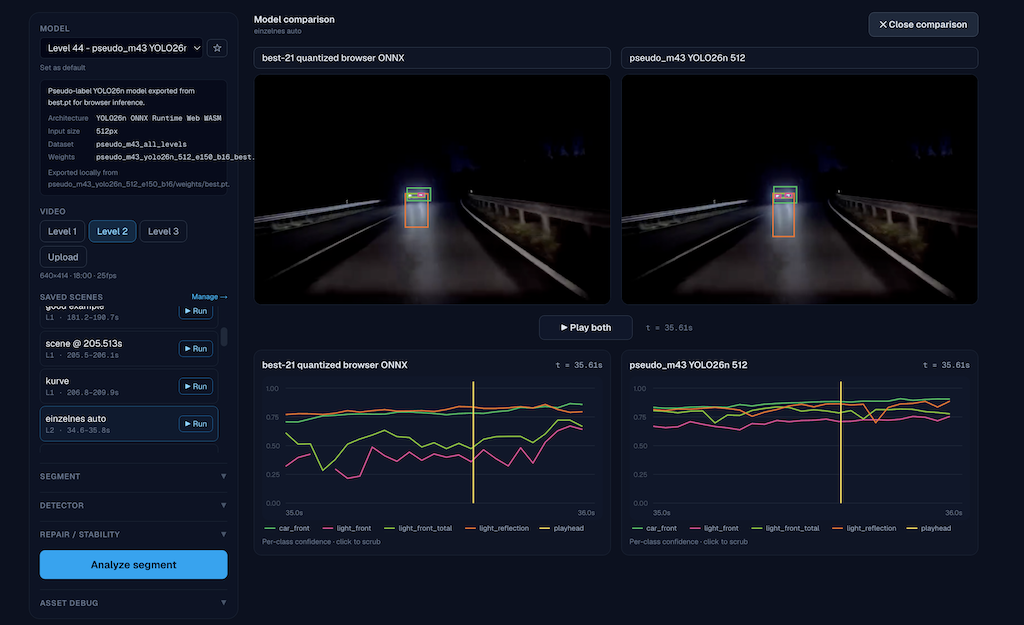
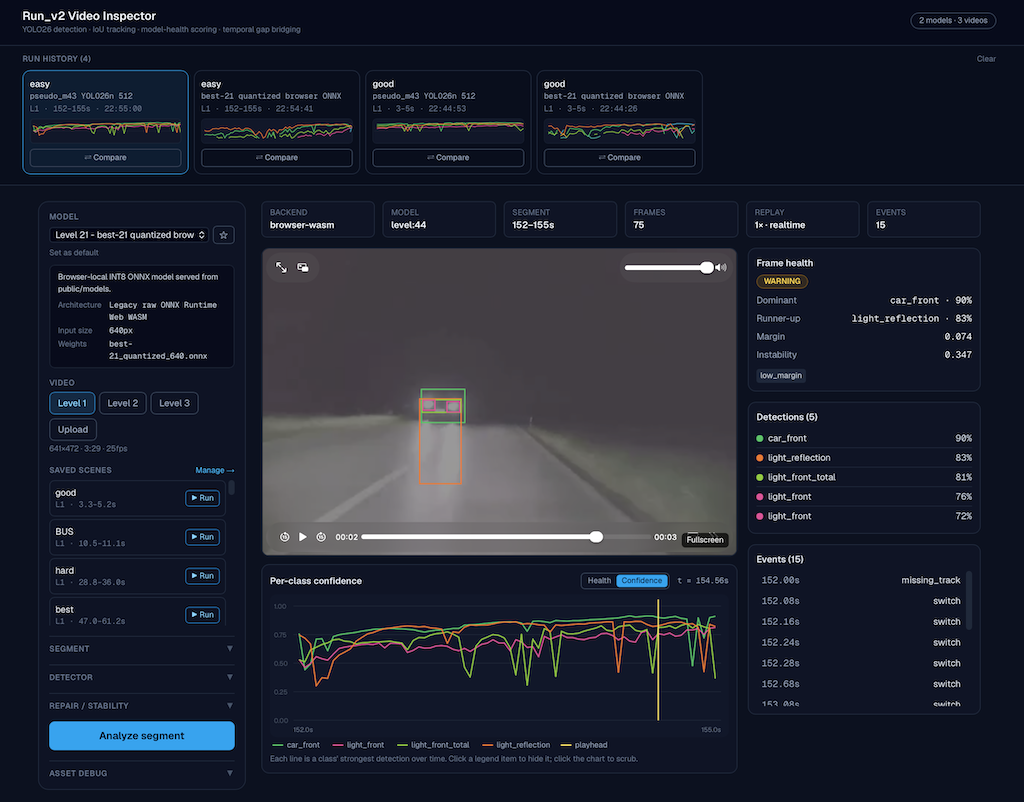
- Run ONNX object-detection models in the browser with ONNX Runtime Web.
- Compare different models on the same video scenes.
- Inspect per-frame detections and bounding boxes.
- See confidence curves over time for every detected class.
- Track cars across frames and show tracking health over time.
- Mark unstable moments like confidence drops, class switches, missing tracks, and jitter.
- Use a timeline to cut and manage favourite scenes.
- Save local run history in your browser.
- Cache models/clips locally in the browser for faster repeat testing.
- Deploy as a normal Next.js app on Vercel.
Object-detection models often look good from a single screenshot but behave badly over time. SceneBench is for finding those temporal problems.
Instead of only asking “did the model detect a car?”, the app helps answer:
- Does confidence stay stable?
- Does the class switch between
car_front,car_rear, andcar_side? - Does the box jitter?
- Does tracking survive short occlusions?
- Which model behaves better on the same difficult clip?
- Which scenes are worth saving as benchmark cases?
Try the live demo at scene-bench.vercel.app, or run locally.
You need Node.js installed. Then:
npm install
npm run dev
Open:
http://localhost:3000
That is it. The demo models, ONNX Runtime files, scene manifest, and small demo clips are already included in public/.
Run locally:
npm run devBuild for production:
npm run buildRun the production build locally:
npm run startLint:
npm run lint- Pick a model.
- Pick a level/video.
- Choose a start time and duration, or select a saved scene.
- Run inference.
- Inspect the result:
- video overlay
- detections at the current frame
- confidence curves
- health timeline
- event list
- run history
Use the Scene Library to browse clips, cut ranges, label scenes, and save favourite benchmark moments.
SceneBench is browser-first. There is no database in this version.
Built-in scenes are shipped with the app:
public/scenes/manifest.json
public/videos/scenes/
User-specific data is stored locally in the user’s browser:
localStorage
This includes:
- run history
- local scenes created by the user
- deleted/hidden built-in scenes
- model preferences
- theme preference
Large assets are not stored in localStorage. Models, WASM files, and clips use browser HTTP cache and optional Cache Storage via the debug panel.
If localStorage is empty, the app tries to load bundled example runs from:
public/demo-runs/history.json
During local development, run a few analyses, then click Save demo in the Run History header. This writes your current local run history into public/demo-runs/history.json, so incognito windows and first-time users can see example benchmark runs immediately.
The Save demo button only appears in npm run dev; production users cannot write files to the deployed app.
ONNX models live here:
public/models/
ONNX Runtime Web WASM assets live here:
public/ort/
The app currently uses the browser WASM execution provider. It also sets cache headers and cross-origin isolation headers so modern browsers can use WASM threads when available.
The repo includes small browser-friendly demo videos and scene clips:
public/videos/
public/videos/scenes/
The original source videos are much larger and are intentionally not included in this repository. The browser demo ships only lightweight preview clips so it can be deployed practically on Vercel.
Maintainers can regenerate browser-friendly clips from a scene JSON file if they have the original source videos locally.
Set one or more source directories with SCENEBENCH_VIDEO_DIRS:
SCENEBENCH_VIDEO_DIRS=/path/to/videos npm run build:scenesMultiple directories can be separated with ::
SCENEBENCH_VIDEO_DIRS=/path/to/videos:/path/to/more-videos npm run build:scenesThe script writes:
public/videos/scenes/
public/scenes/manifest.json
The generated public manifest intentionally does not include local source paths.
Import this repo into Vercel and use the repository root as the project root.
Build command:
npm run buildInstall command:
npm installOutput directory:
.next
The app is a standard Next.js app. Do not commit or deploy node_modules, .next, or out.
The sidebar includes a Vercel asset debug panel. It shows whether the browser can reach/cache:
- scene manifest
- ONNX models
- ONNX Runtime WASM files
- current video/clip
- ONNX session readiness
- WASM thread availability
Buttons:
Check: check asset availability.Cache selected: explicitly cache selected assets in browser Cache Storage.Clear asset cache: clear only the explicit asset cache.Reset app data: clear SceneBench local browser data like run history and preferences.
If you are new to this:
npm installdownloads the JavaScript dependencies.npm run devstarts the local development server.public/contains files that are served directly by the website.src/contains the app code..next/is generated by Next.js and should not be committed.node_modules/is generated by npm and should not be committed.
If something gets weird, try:
rm -rf .next
npm run dev
If browser data gets weird, use Reset app data inside the app.