Kori is a free Windows plugin for OBS Studio that creates smooth, camera-style zoom animations without duplicating scenes or configuring complex transitions.
Click a face or object to choose the focus point, then trigger the zoom with a hotkey or automatically when a scene becomes active. Kori can return smoothly to the exact starting view, zoom one camera or move the whole scene—including logos, videos and overlays.
Official website: koricamera.com
| Manual cinematic zoom | Automatic zoom on scene change |
|---|---|
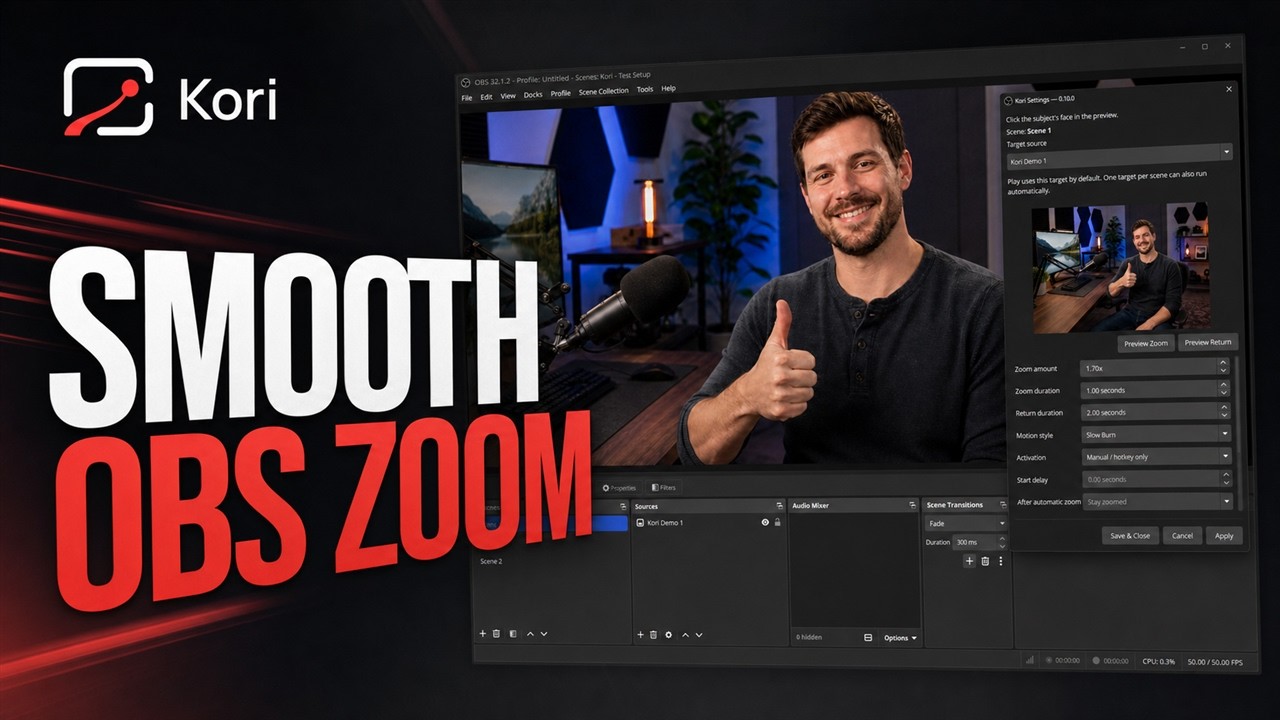 |
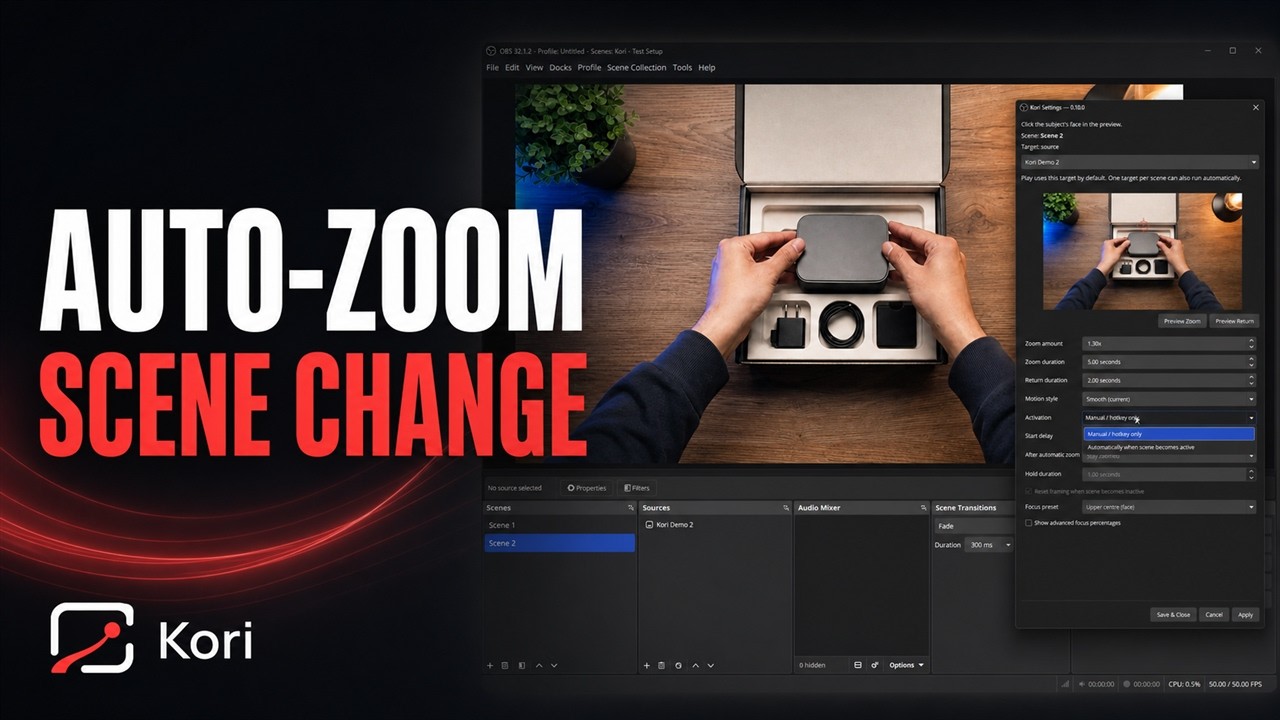 |
| Watch the manual zoom demonstration | Watch the automatic scene zoom demonstration |
Download Kori 0.12 for Windows
Kori works with:
- Windows 10 or 11
- OBS Studio 31.1 or newer
- Normal OBS scenes
- Download the Kori ZIP using the button above.
- Open the downloaded ZIP and extract its contents.
- Close OBS.
- Double-click Install Kori.cmd.
- Approve the Windows prompt.
- Open OBS and choose Tools > Kori Settings.
Kori is still being tested and the installer is not yet signed. Windows may show an unrecognized-app warning. Only download Kori from this GitHub page.
- Open your scene in OBS.
- Choose Tools > Kori Settings.
- Choose the camera or item you want to zoom.
- Click or drag the red target onto the person's face or another point of interest.
- Choose a ready-made Camera style, or open Fine-tune to adjust zoom, timing, movement and motion blur.
- Use Preview Zoom and Preview Return to check the result.
- Choose Save & Close.
- Open Settings > Hotkeys and assign keys for:
- Kori: Play slow zoom
- Kori: Return smoothly to start
Press your Play hotkey to zoom in and your Return hotkey to move back out.
Kori can start an animation as soon as you switch to a scene.
In Kori Settings, change Activation to Automatically when scene becomes active. You can also add a delay, leave the scene zoomed in, or have it wait and return automatically.
- One camera or other item
- Everything in the scene at once
- Different items with their own saved zoom settings
- Different scenes with their own focus points and timings
| Feature | Kori |
|---|---|
| Duplicate scenes required | No |
| Smooth zoom and return | Yes |
| Clickable focus-point picker | Yes |
| Manual hotkey control | Yes |
| Automatic zoom when a scene becomes active | Yes |
| Zoom an individual item or the entire scene | Yes |
| Ready-made camera movement styles | Yes |
| Motion blur during movement | Yes |
Kori is a free plugin that adds smooth, camera-style zoom animations to OBS Studio on Windows.
No. Kori can animate an item or the entire active scene without requiring a duplicate scene.
Yes. A saved zoom can begin automatically when its scene becomes active. You can also add a delay, hold the zoom or return automatically.
Yes. OBS hotkeys can play the saved zoom and return smoothly to the starting view.
No. Kori does not collect usage information or connect to the internet.
The current beta supports Windows 10 and 11, OBS Studio 31.1 or newer and the standard OBS canvas. Other operating systems and additional canvases are not supported yet.
No. Kori is an independent open-source plugin and is not affiliated with or endorsed by the OBS Project.
- This version supports the standard OBS canvas. Support for additional canvases is planned.
- Items inside a group cannot be chosen separately yet, but they will still move when you zoom the whole scene.
- Some heavily cropped items may need the advanced focus controls.
- Automatic zoom follows the live Program scene, not the Studio Mode Preview.
- This version is for Windows.
- Visit the Kori website
- Full user guide
- Help test the beta
- Fix a problem
- Report a bug or suggest an idea
- See what changed
You can also contact kori.dev@askq.co.nz.
Kori does not collect usage information or connect to the internet.
Kori is an independent plugin and is not affiliated with or endorsed by the OBS Project. OBS, OBS Studio and the OBS Studio logo are registered trademarks of Wizards of OBS LLC.
The sections below are only needed if you want to inspect, build or contribute to Kori: