This repository was archived by the owner on Oct 1, 2024. It is now read-only.
Searching
Searching for items in your history is simple, open CutBox with your preferred shortcut key
(defaults to Cmd + Shift + V)

In the search bar, begin typing what you want to paste. You'll see matches show up and you'll be able to select the item you want to paste, using the keyboard (Enter) or mouse (double click).
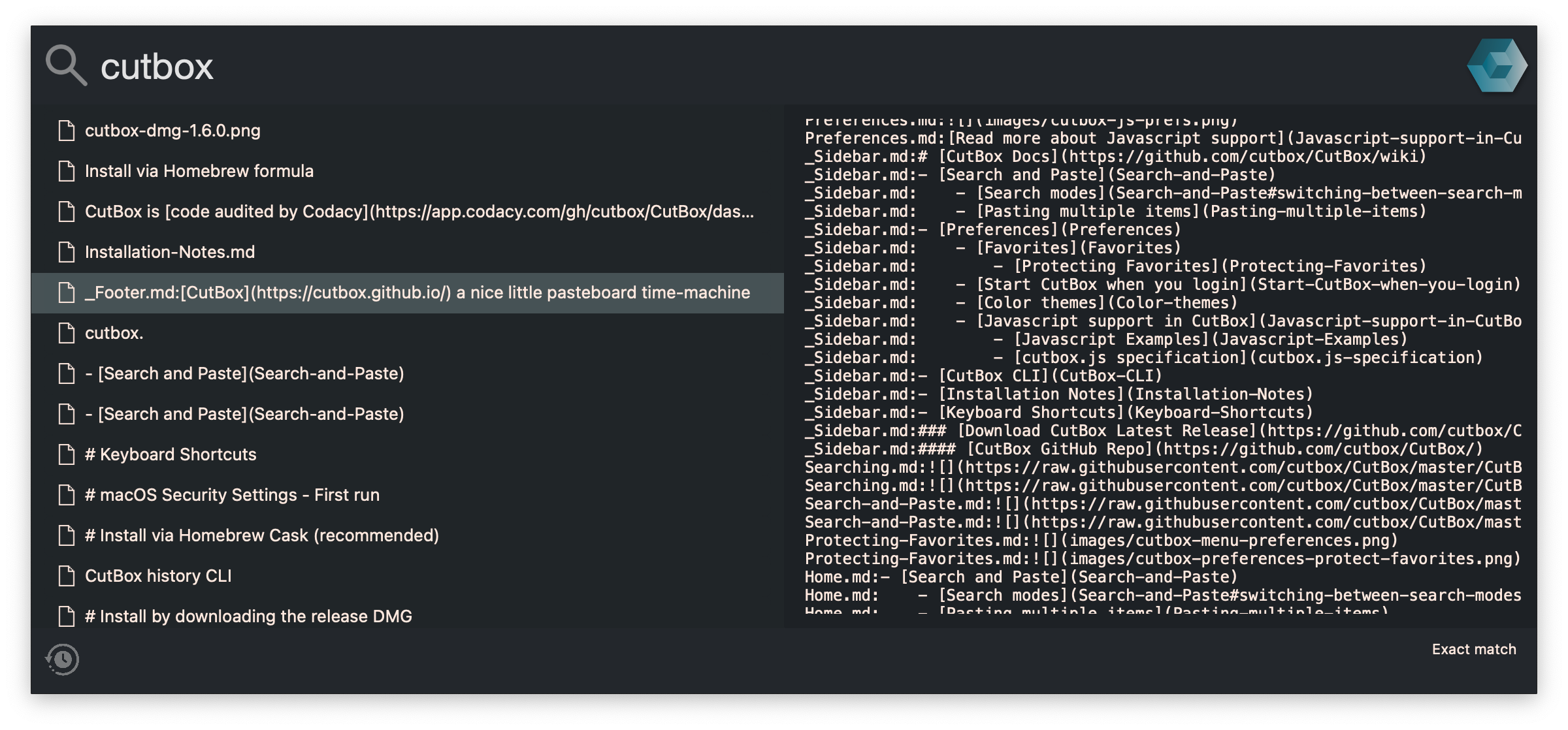
Use Cmd + S to switch between search modes. (The current mode is indicated on the search popup and in the CutBox menu.)
CutBox default search mode uses fuzzy matching, type some characters and CutBox will find them in anything you've copied.
For very specific match/filtering use PCRE (Perl compatible regular expressions), you can select case insensitive and case sensitive matching.