





Light-weight CLI tool to ensure that your dependencies are up-to-date, otherwise the process is terminated with status code 1.
This is an improved version of npm outdated, which can be used in build-pipelines, pre-publish scripts (npm) or pre-commit hook (Git) to make sure all the used dependencies are up-to-date.
- Zero dependencies
- Optionally ignore pre-releases (e.g. "2.1.0-alpha", "2.1.0-beta", "2.1.0-rc.1")
- Optionally ignore dev dependencies
- Optionally ignore specific packages
- Optionally ignore a specific version or version range of a package (e.g. to skip a broken version)
- Optionally filter by version age to avoid very new or potentially compromised releases
- Supports aliased npm dependencies (e.g.
"alias-name": "npm:actual-package@1.0.0") - Checks version pins in the
overrides(npm) andresolutions(Yarn) fields of the package.json, which are not covered bynpm outdated - Optionally restrict the update type (e.g. only show minor updates, or reverted versions)
- Optionally check globally installed packages
- Optionally set depth for checking dependency tree
- Show link to changelogs
- Configure visible columns
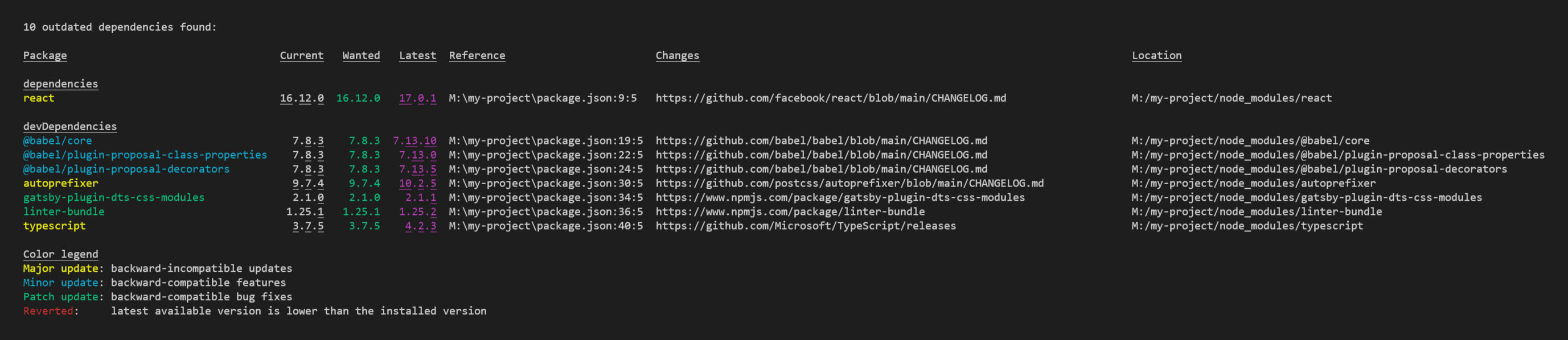

The benefit of using npx is, that it ensures that always the latest version of check-outdated is used. In addition, a download is only necessary in environments where it is needed - e.g. if check-outdated is not needed on the build server, it does not have to be downloaded there, which may
speeds up the dependency installation slightly.
On command-line you can run the command like this:
npx check-outdatedAll arguments are optional. Here is a more advanced example:
npx check-outdated --ignore-pre-releases --ignore-dev-dependencies --ignore-packages package1,package2 --columns name,type,current,latest,changes --min-age 14 --min-age-patch 3Or put it into your package.json:
{
  "scripts": {
    "check-outdated": "npx --yes -- check-outdated --ignore-pre-releases --ignore-dev-dependencies --ignore-packages package1,package2 --columns name,type,current,latest,changes --types major,minor,patch,reverted --min-age 14 --min-age-patch 3",
    "preversion": "npm run lint && npm run test && npm run check-outdated"
  }
}npm install check-outdated --save-dev
# or
yarn add check-outdated -DAfter you've installed check-outdated you can run the command like this:
node_modules/.bin/check-outdated --ignore-pre-releases --ignore-dev-dependencies --ignore-packages package1,package2 --columns name,type,current,latest,changes --types major,minor,patch,reverted --min-age 14 --min-age-patch 3Or put it into your package.json:
{
  "scripts": {
    "check-outdated": "check-outdated --ignore-pre-releases --ignore-dev-dependencies --ignore-packages package1,package2 --columns name,type,current,latest,changes --types major,minor,patch,reverted --min-age 14 --min-age-patch 3",
    "preversion": "npm run lint && npm run test && npm run check-outdated"
  }
}| Argument | Description | Example |
|---|---|---|
| --help, -h | Show the help | --help |
| --ignore-pre-releases | Don't recommend to update to pre-release versions (e.g. "2.1.0-alpha", "2.1.0-beta", "2.1.0-rc.1") | --ignore-pre-releases |
| --ignore-dev-dependencies | Do not warn if devDependencies are outdated. | --ignore-dev-dependencies |
| --ignore-resolution-dependencies | Do not check the version pins in the overrides and resolutions fields of the package.json. (See Version Pins below) |
--ignore-resolution-dependencies |
| --ignore-linked-packages | Do not warn if linked packages are outdated. A package counts as linked if it is a symbolic link to a folder outside of any node_modules folder, which is the case for workspaces of a monorepo, packages bootstrapped by Lerna, and packages added with npm link. Such a package is not updated by npm, and its version usually lags behind the published one during local development. |
--ignore-linked-packages |
| --ignore-packages <comma-separated-list-of-package-names> | Ignore the listed packages, even if they are outdated. Using the @ syntax (<package>@<version>) you can also, only ignore a specific version, or a semver range (like ^2, ~2.3.4, 2.*, 2.3.x) of a package (e.g. if it's broken).For aliased dependencies ( "alias": "npm:package@version"), use the alias name. |
--ignore-packages typescript,terser-webpack-plugin@3.0.0,got@^12 |
| --prefer-wanted | Compare the Current version to the Wanted version, instead of the Latest version. |
--prefer-wanted |
| --columns <comma-separated-list-of-columns> | Defines which columns should be shown in which order. (See Available Columns below) | --columns name,current,latest,changes |
| --types <comma-separated-list-of-update-types> | Restrict the update type (e.g. only show minor updates, or reverted versions) (See Available Types below) | --types minor,reverted |
| --global | Check packages in the global install prefix instead of in the current project (equal to the npm outdated-option) | --global |
| --depth <number> | Max depth for checking dependency tree (equal to the npm outdated-option) | --depth 3 |
| --min-age <days> | Only recommend release lines (Major.Minor) where at least one version was published at least <days> days ago. Within that line, the newest patch is recommended (controlled by --min-age-patch). This helps avoid unstable or compromised releases. Pre-release versions are never recommended; if no stable version newer than the installed one satisfies the age requirement, the package is not reported. If time data cannot be retrieved (e.g., private registry), the package is shown without the age filter along with a warning. See Version Age Filtering below. |
--min-age 14 |
| --min-age-patch <days> | Minimum age in days for patch versions within the release line determined by --min-age (requires --min-age; default: 0, must not be greater than --min-age). See Version Age Filtering below. |
--min-age 14 --min-age-patch 3 |
By default, the following columns are shown:
package, current, wanted, latest, reference, changes, location
You are able to overwrite the default by using the --columns argument.
| Caption | --columns value | Description | Example |
|---|---|---|---|
| Package | package |
The name of the package. Red means there's a newer version matching your semver requirements, so you should update now. Yellow indicates that there's a newer version above your semver requirements (usually new major, or new 0.x minor) so proceed with caution. |
typescript |
| Current | current |
The currently installed version of the package. | 3.7.2 |
| Wanted | wanted |
The maximum version of the package that satisfies the semver range specified in package.json. If there's no available semver range (i.e. you're using the --global argument, or the package isn't included in package.json), then wanted shows the currently-installed version.This column is always colored in green. |
3.7.2 |
| Latest | latest |
The version of the package tagged as latest in the npm registry. This column is always colored in magenta. |
3.8.3 |
| Reference | reference |
Contains a link to the line and column of the dependency in the package.json. By using a terminal which supports clicking on such links, you can navigate directly the the item. |
P:\my-project\package.json:47:3 |
| Changes | changes |
check-outdated tries to find a direct link to changelog of the package. The following places are considered in the given order:
|
https://github.com/Microsoft/TypeScript/releases |
| Changes | changesPreferLocal |
Same as changes, but first check for a CHANGELOG.md in the package folder.Keep in mind, you'll only see the changelog of the currently installed version, not of the version which is recommended. |
node_modules/fs-extra/CHANGELOG.md |
| Type | type |
Shows if the difference between Current and Latest is a major, minor, patch, prerelease, build or reverted update, in Semantic Versioning. For more details see Available Types below. |
minor |
| Location | location |
Shows where in the dependency tree the package is located. Note that check-outdated defaults to a depth of 0, so unless you override that, you'll always be seeing only top-level dependencies that are outdated. | node_modules/typescript |
| Package Type | packageType |
Tells you whether this package is a dependency or a devDependency, or a version pin from the overrides or resolutions field. Packages not included in package.json are always marked dependencies. If this column is not activated, the packages are grouped by their type, otherwise they are ordered by their name. |
devDependencies |
| Homepage | homepage |
An URL with additional information to the package. The following places are considered in the given order:
|
https://www.typescriptlang.org/ |
| npmjs.com | npmjs |
A link to the package on the npmjs.com website. | https://www.npmjs.com/package/typescript |
The type describes the difference between the Current version and Latest version, in Semantic Versioning. By default, all types are shown.
You are able to overwrite the default by using the --types argument.
| --types value | Description | Example |
|---|---|---|
major |
Backward-incompatible updates | 1.2.3 -> 2.0.0 |
minor |
Backward-compatible features | 1.2.3 -> 1.3.0 |
patch |
Backward-compatible bug fixes | 1.2.3 -> 1.2.4 |
reverted |
Latest available version is lower than the installed version | 1.2.3 -> 1.1.5 |
prerelease |
Only the pre-release version has been amended or added | 1.2.3 -> 1.2.3-beta.1 |
build |
Only build metadata has been amended or added | 1.2.3 -> 1.2.3+build.2 |
Version pins in the overrides field (npm) and the resolutions field (Yarn) of the package.json force specific versions of (usually transitive) dependencies. Since npm outdated does not report such pins, they tend to silently become outdated.
check-outdated checks these pins against the npm registry by default and reports them like regular dependencies, grouped as overrides and resolutions:
- Wanted is the highest published version which satisfies the pinned version or version range.
- Latest is the version tagged as latest in the npm registry.
- Current is the installed version, if the pinned package is currently installed.
Nested overrides (e.g. "pkg": { "sub-pkg": "1.0.0" }), "." keys, version-qualified keys (e.g. "pkg@2.x": "1.0.0"), glob-prefixed resolutions (e.g. "pkg/**/sub-pkg": "1.0.0") and aliased pins (e.g. "npm:pkg@1.0.0") are supported.
The following entries don't manage an own version number, so they are skipped:
- References to other dependencies (e.g.
"$pkg") - Wildcard specifiers (
"*") - Non-registry specifiers (e.g.
git:,file:, URLs) and complex ranges (e.g.">=1.2.3 <2")
To exclude single packages use --ignore-packages, to disable the checking of version pins completely use --ignore-resolution-dependencies. With --global, version pins are never checked, since the pins of the local package.json don't apply to globally installed packages.
The --min-age option prevents recommending versions that were published very recently, which helps avoid unstable releases or supply-chain attacks.
Two-step version selection: When --min-age is used, the version recommendation works in two steps:
- Determine the release line: Find the highest Major.Minor version where at least one version is old enough to satisfy
--min-age. - Pick the best patch: Within that Major.Minor line, select the newest patch that satisfies
--min-age-patch(default:0).
Why? If only --min-age were applied uniformly, a qualifying version like 1.1.0 might be recommended even though newer patches 1.1.1 and 1.1.2 exist that fix known bugs.
Since patch releases are backward-compatible bug fixes with low risk, they should generally be included. The default --min-age-patch 0 ensures all patches within the qualifying release line are available.
If you want to also require a minimum age for patches, you can set --min-age-patch explicitly (e.g. --min-age-patch 3).
Example: Given versions 1.0.0 (50 days old), 1.0.1 (19 days), 1.1.0 (12 days), 1.1.1 (5 days), 1.1.2 (2 days), current version 1.0.0:
| Arguments | Qualifying line | Recommended version | Explanation |
|---|---|---|---|
--min-age 10 |
1.1.x | 1.1.2 |
1.1.0 qualifies (12 days), newest patch in 1.1.x with default --min-age-patch 0 is 1.1.2 |
--min-age 10 --min-age-patch 3 |
1.1.x | 1.1.1 |
1.1.2 (2 days) is too new for --min-age-patch 3, so 1.1.1 (5 days) is picked |
--min-age 10 --min-age-patch 10 |
1.1.x | 1.1.0 |
Only 1.1.0 (12 days) in 1.1.x satisfies --min-age-patch 10 |
--min-age 30 |
1.0.x | 1.0.1 |
1.0.0 qualifies (50 days), newest patch in 1.0.x is 1.0.1 |
--min-age 30 --min-age-patch 30 |
1.0.x | (up-to-date) | Only 1.0.0 (50 days) in 1.0.x satisfies 30 days, but it equals the current version |