

The complete OpenCode experience inside VS Code.
Varro brings OpenCode into a compact, project-aware workbench for daily agentic development. Run agents, manage parallel sessions, review plans and file changes, control models and permissions, and monitor context, tokens, and provider limits without leaving the editor.
Varro builds on OpenCode instead of replacing it. Your local OpenCode configuration remains the source of truth for agents, providers, models, commands, skills, and MCP servers.
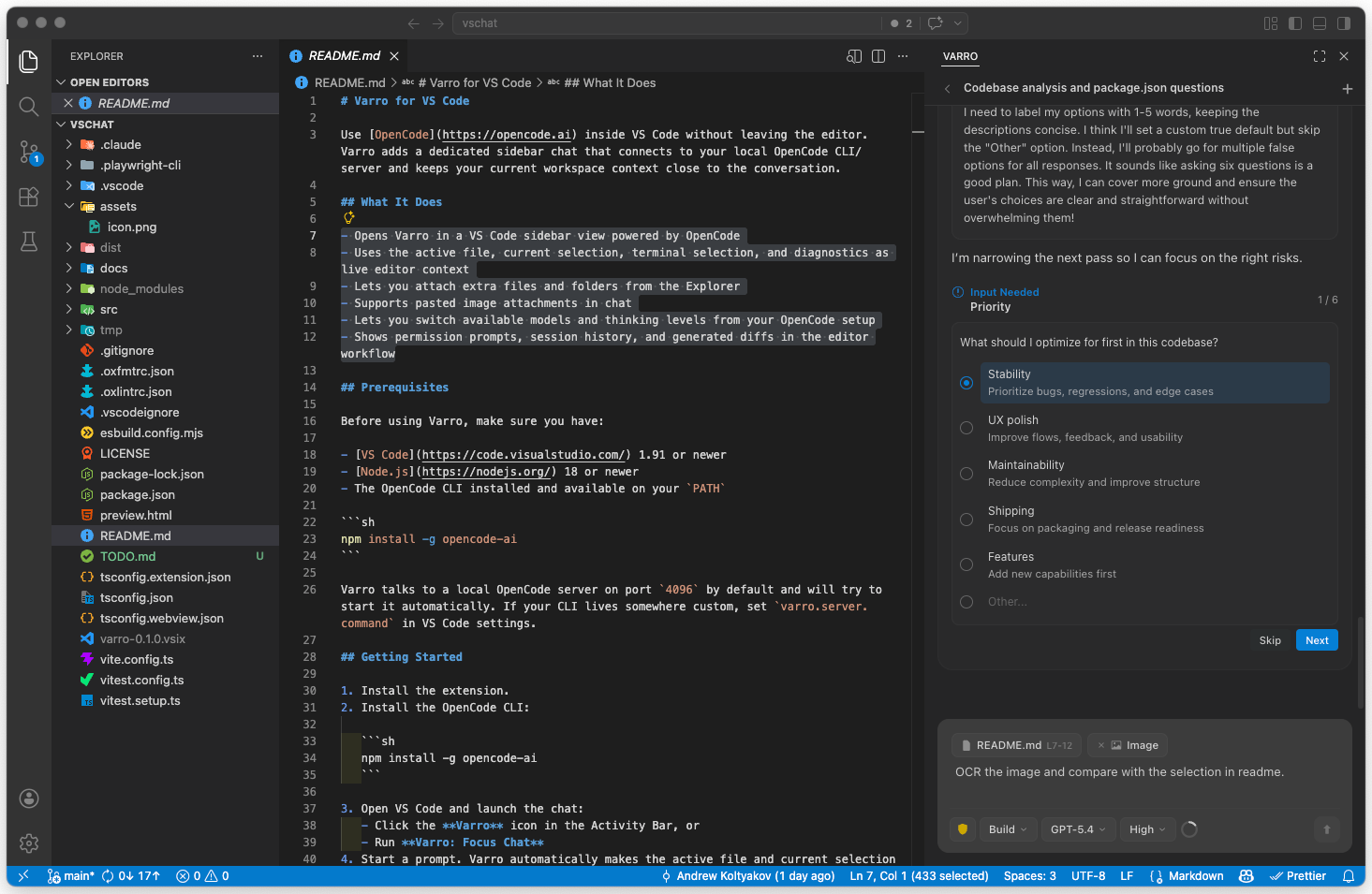
- Built for the whole agent loop. Prompts, streaming output, reasoning, tool activity, permissions, questions, todos, plans, and changed files stay in one readable flow.
- Project context without busywork. The active file and selection can follow the conversation automatically, while Explorer items, terminal output, files, folders, images, and
@mentions can be added explicitly. - Parallel work that stays understandable. Workspace sessions clearly identify running, attention-needed, failed, completed, and plan-ready work. Notifications and the status bar keep background sessions visible.
- OpenCode controls at the point of work. Agents, models, reasoning variants, permission modes, and per-session MCP connections are available from the composer.
- Usage you can act on. Provider limits and reset windows appear next to model controls when available, while detailed accounting covers context fill, input, output, reasoning, cache, and sub-agent tokens.
- Compact by design. The complete workflow remains readable in a sidebar, with an optional session pane for larger layouts.
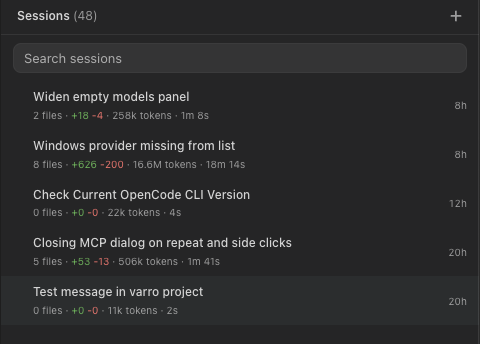
Sessions are filtered to the current workspace and sorted by recent activity. Each session can show changed files, line additions and removals, token usage, duration, and current state.
You can search, pin, rename, resume, share or unshare, or move sessions to the recycle bin. Sharing asks OpenCode to create a share link and copies it to the clipboard. Sub-agent sessions remain linked to their parent session. On larger layouts, the session list can stay open beside the active chat.
When the sidebar is hidden, Varro can notify you when a plan is ready, a top-level session fails, requests permission, or asks a question. The status bar also tracks top-level sessions that finish in the background.
- The active file and current selection are included automatically by default.
- A document chip shows the current live editor context and lets you disable it for the session.
- Files, folders, line ranges, and terminal output can be added with
Varro: Add to ContextorCmd+Shift+K/Ctrl+Shift+K. - Files and folders can be dragged into the composer, and images can be pasted directly.
- Typing
@searches workspace files and available agents. - While a session is running, you can queue a follow-up, steer the current run, or stop and replace the prompt.
- Composer undo and redo include file and image attachment changes.
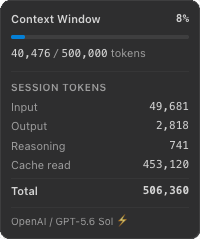
The context indicator reports how much of the selected model's known context window is in use. Its popup includes session totals for input, output, reasoning, cache reads, cache writes, and sub-agent tokens.
Provider-limit status is shown when OpenCode metadata or a supported provider endpoint supplies quota data. Available windows include remaining capacity and reset timing. If a provider returns a usage-limit error, Varro provides actions to stop retrying or switch providers.
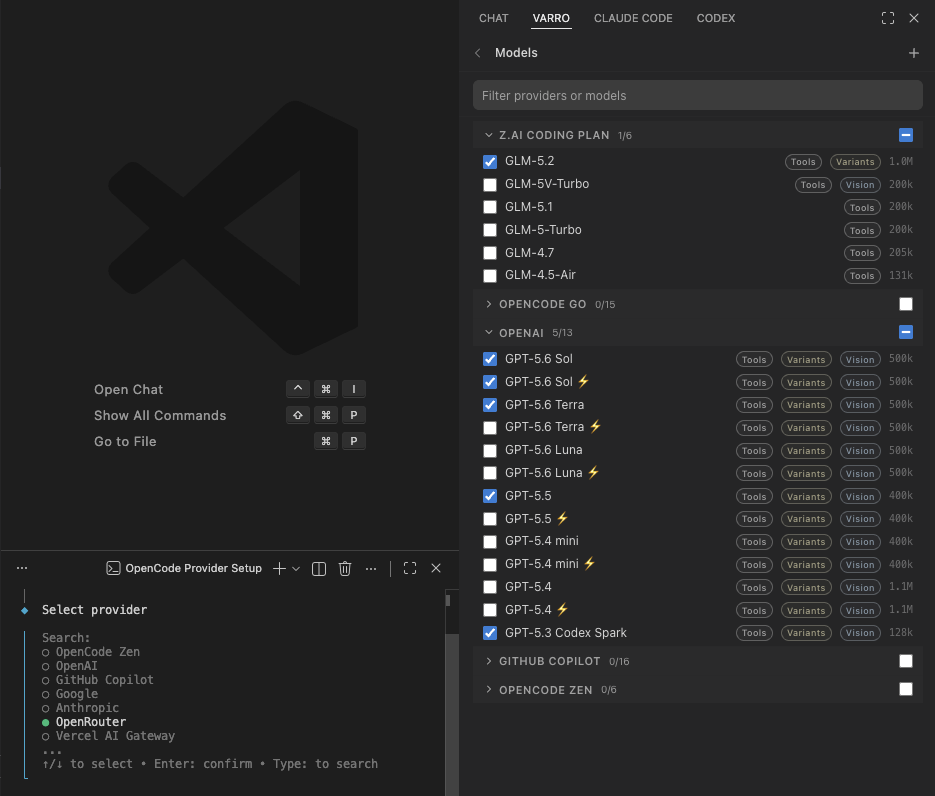
The model picker loads providers and models from OpenCode. It shows known capabilities such as tool support, reasoning variants, vision support, and context-window size. Providers and individual models can be hidden from the picker without changing the underlying OpenCode configuration.
MCP servers are also loaded from OpenCode and can be connected or disconnected per session.
- Answer OpenCode questions and permission requests in the chat
- Open changed files or hand the session off to VS Code Source Control
- Open a completed plan as a Markdown document or continue it in an implementation session
- Run plan-driven Ralph loops with iteration, verification, repair, pause, and resume controls; Ralph runs use
Full access - Use built-in and custom slash commands such as
/review,/compact,/export,/skills,/diagnostics,/fork, and/ralph - Reconnect to resumable sessions after a VS Code reload
- Install Varro from the VS Code Marketplace.
- Install the OpenCode CLI with
npm install -g opencode-ai. - Run
opencode auth login, or use/connectin Varro, if no provider is configured yet. - Open a folder in VS Code and select
Varrofrom the Activity Bar. - Start a session. Varro starts or connects to OpenCode when the chat first needs it.
VS Code and VSCodium are the target containers for Varro. VS Code forks have limited support; see VS Code fork compatibility for details.
Varro connects to http://127.0.0.1:4096 by default. varro.server.port accepts integers from 1 through 65535. To manage the server manually, disable varro.server.autoStart and run opencode serve --port 4096.
- VS Code or VSCodium 1.120 or newer
- Node.js 22.12+ on Node 22, or Node 24+
- The OpenCode CLI 1.16.0 or newer on your
PATH, or its executable path set invarro.server.command.
- Usage guide
- VS Code forks compatibility
- Development guide
- Architecture overview
- Issues and feature requests
Varro is available under the MIT License.