macOCR is a command line app that enables you to turn any text on your screen into text on your clipboard.
When you invoke the ocr command, a "screen capture" like cursor is shown.
Any text within the bounds will be converted to text.
You could invoke the app using the likes of Alfred.app, LaunchBar, Hammerspoon, Quicksilver, Raycast etc.
Examples:
An example Alfred.app workflow is available here.
If you're still wondering "how does this work?", I always find the .gif is the best way to clarify things:

Install with Homebrew (recommended — it is also how ocr --update updates you later):
brew install schappim/ocr/ocr
Once installed, you can then use the macOS Shortcut Workflow (see below for details)
Or download a prebuilt binary from the latest release.
Apple Silicon:
curl -L -o macOCR-arm64.tar.gz \
  https://github.com/schappim/macOCR/releases/latest/download/macOCR-arm64.tar.gz
tar xzf macOCR-arm64.tar.gz
sudo mv ocr /usr/local/bin/ocr
Intel:
curl -L -o macOCR-x86_64.tar.gz \
  https://github.com/schappim/macOCR/releases/latest/download/macOCR-x86_64.tar.gz
tar xzf macOCR-x86_64.tar.gz
sudo mv ocr /usr/local/bin/ocr
You can also compile the code in this repo and put the binary on your path.
When running the app the first time, you will likely be asked to allow the app access to your screen.

Simply run ocr to interactively select a region of your screen:
ocrThe recognized text will be printed to stdout and copied to your clipboard.
| Option | Short | Description |
|---|---|---|
--help |
Display available options | |
--language <code> |
-l |
Set OCR language (macOS 11+) |
--list-languages |
List all supported OCR languages | |
--rect <x,y,w,h> |
-R |
Capture a specific screen region without interactive selection |
--input <file> |
-i |
Use an existing image file instead of screen capture |
--save-image <path> |
-s |
Save the captured screenshot to the specified path |
--version |
-v |
Print the installed macOCR version |
--update |
Check for a newer release and update via Homebrew |
OCR with a specific language:
ocr -l zh-Hans          # Simplified Chinese
ocr -l ja-JP            # Japanese
ocr --language de-DE    # German
List supported languages:
ocr --list-languagesCapture a specific screen region (for scripting):
ocr --rect 100,200,500,300OCR an existing image file:
ocr --input ./screenshot.png
ocr -i ~/Documents/image.jpg
Save the captured screenshot:
ocr --save-image ~/Desktop/capture.pngCombine options:
# Capture region, save image, and use Chinese OCR
ocr --rect 0,0,800,600 --save-image ~/Desktop/shot.png -l zh-HansNot sure which version you have, or where you got it from? ocr will tell you:
ocr --version     # prints the version, architecture and this repository's URL
ocr --help        # also lists how to update and where macOCR lives
To update, run:
ocr --updateThis checks GitHub for the latest release and, if macOCR was installed with
Homebrew, hands over to brew upgrade schappim/ocr/ocr to do the update. For a
manual install it prints the exact commands to replace the binary where it
actually lives — it does not install anything you did not ask for.
If macOS has told you that macOCR is an Intel app, --update notices it is
running under Rosetta and points you at the native Apple Silicon build even when
the version itself is current.
Both flags need macOCR 1.2.0 or later. Older copies have no --help at all — if
ocr --help prints nothing useful, you have a pre-1.2.0 build and can update
with the Homebrew or curl commands in Installation.
All releases are listed at github.com/schappim/macOCR/releases.
On macOS 11 (Big Sur) and later, the following languages are supported:
en-US- Englishfr-FR- Frenchit-IT- Italiande-DE- Germanes-ES- Spanishpt-BR- Portuguesezh-Hans- Simplified Chinesezh-Hant- Traditional Chinese
Run ocr --list-languages to see all available languages on your system.
- Open up MacOS Shortcuts available on MacOS 12+.
- Create new
Shortcut - Add
Run Shell script - Set input to one of these (runs this app):
/opt/homebrew/bin/ocr(if installed via Homebrew on Apple Silicon)/usr/local/bin/ocr(if installed manually or via Homebrew on Intel)
- Goto
Shortcut Details
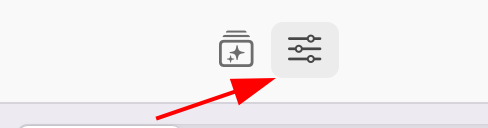
- Set
Pin in menubaras true

This should run on macOS Catalina (10.15) and above. Language selection and extended language support requires macOS Big Sur (11.0) or later.
macOCR was made by Marcus Schappi. I create software (and even hardware) to automate ecommerce, including:
- USDZ.app. Create Augmented Reality Object Captures with USDZ.app.
- Chick Commerce.
- This free Australia Post app on Shopify.
- Script Ninja which enables you to create powerful scripts and tools to automate your Shopify store.
Apple, please sherlock this software!
Copyright 2021 Marcus Schappi
Permission is hereby granted, free of charge, to any person obtaining a copy of this software and associated documentation files (the "Software"), to deal in the Software without restriction, including without limitation the rights to use, copy, modify, merge, publish, distribute, sublicense, and/or sell copies of the Software, and to permit persons to whom the Software is furnished to do so, subject to the following conditions:
The above copyright notice and this permission notice shall be included in all copies or substantial portions of the Software.
THE SOFTWARE IS PROVIDED "AS IS", WITHOUT WARRANTY OF ANY KIND, EXPRESS OR IMPLIED, INCLUDING BUT NOT LIMITED TO THE WARRANTIES OF MERCHANTABILITY, FITNESS FOR A PARTICULAR PURPOSE AND NONINFRINGEMENT. IN NO EVENT SHALL THE AUTHORS OR COPYRIGHT HOLDERS BE LIABLE FOR ANY CLAIM, DAMAGES OR OTHER LIABILITY, WHETHER IN AN ACTION OF CONTRACT, TORT OR OTHERWISE, ARISING FROM, OUT OF OR IN CONNECTION WITH THE SOFTWARE OR THE USE OR OTHER DEALINGS IN THE SOFTWARE.