




Note
This was built as a learning project. I have given up on macOS's cache systems. I made this as there were no Apple-signed open source projects that didn't give a "move to trash" popup - trust issues.
[Personal use]
Warning
- App and file icon changer works | System level apps and folders in the
/Applicationsdirectory specifically do not work even with aliases most of the time. - Drag and drop feature does fail sometimes, in that case you can click "download" on the icon for macOSicons and it will apply.
If you aren't familiar with GitHub, downloading the app is simple!
- Click here to go to the Latest Release page.
- Scroll down to the Assets section at the bottom of the release notes.
- Click on the
.dmgfile (e.g.,IconChanger-v1.1.3.dmg) to download the app. - Double-click the downloaded file and drag Icon Changer into your Applications folder.
When opening the app for the first time, you may see a warning saying: "Apple could not verify 'IconChanger' is free of malware."
Because this is a free, open-source application, it is not signed with a paid Apple Developer certificate. macOS automatically flags unsigned applications downloaded from the internet to protect you.
How to open the app:
- Try to open Icon Changer normally (it will be blocked by a warning). Click "OK".
- Open your Mac's System Settings.
- Navigate to Privacy & Security.
- Scroll down to the Security section.
- You will see a message saying "Icon Changer was blocked from use because it is not from an identified developer." Click the "Open Anyway" button next to it. (You only have to do this once! The app will open normally from then on).
While Icon Changer safely uses native macOS APIs, you might encounter two specific scenarios where macOS stubbornly refuses to show your custom icon:
- Auto-Updating Apps (Discord, Spotify, VS Code): Many modern apps use aggressive background auto-updaters. When these apps download an update, they completely overwrite their own application folder with a fresh installation, silently wiping out your custom icon in the process.
- Text Files in Dock Stacks: If you place a text file or document inside a folder that is pinned to your Dock (a Dock Stack), macOS is hardcoded to forcefully generate a QuickLook text preview, completely ignoring any custom icon you applied.
The Solution: Alias Generation This is still work in progress and might not work for certain folders. Icon Changer features a built-in workaround specifically designed to defeat both of these behaviors:
- Drop the stubborn application or text file into the Icon Changer target zone.
- Click the "Create Alias" button located in the blue Alias Generator information box.
- A standard macOS save window will pop up, allowing you to choose exactly where to save a lightweight alias (like your Desktop or user Applications folder).
- Icon Changer automatically targets this new alias. Apply your custom icon directly to the alias.
- Finally, place the alias in your Dock or Dock Stack instead of the original file!
For apps, your alias will remain completely untouched and safe when the background updater runs. For text files, the Dock won't be able to generate a text preview from the alias, forcing it to beautifully render your custom icon instead.
- Drag & Drop Simplicity: Drop any
.app, folder, or file into the app, and drag an image directly from the built-in web browser into the Target box to instantly change its icon or add manually via a button. - Universal Compatibility: Change the icon of virtually anything on macOS. This includes standard folders, text files (
.txt), documents, scripts, alias shortcuts, standard applications (.app), and custom Automator shortcut applications. - Native macOS Design: Built entirely with SwiftUI, featuring translucent sidebars, vibrant materials, and an integrated native web browser.
- Save Your Favorites: Configure a custom Download Directory to permanently archive any icons you apply or download.
- Built-in Icon Browsing: Browse macOSIcons, Icons8, Flaticon, IconFinder, and DeviantArt directly within the app without needing a separate web browser.
- Alias Generator: A dedicated one-click alias generation UI for bypassing macOS quirks. Creates safe aliases for applications (like Discord or Spotify) that constantly overwrite custom icons with aggressive background auto-updaters, and completely fixes the macOS Dock Stack text preview limitation for text files and documents. A native save window pops up so you can safely place the alias wherever you prefer.
- Automatic Updates: Built-in update engine checks for new releases on launch and installs them seamlessly in the background.
- Optimized Memory Usage: Inactive browser sessions are automatically deallocated from memory to ensure the application remains lightweight during extended use.
- Instant Cache Invalidation: Proactively overrides the macOS Finder cache system to ensure customized icons update visually on your screen instantly.
- Storage Management: Safely monitor and clear temporary icon downloads or manage custom archive folders directly from the Settings interface.
Because Icon Changer uses native macOS APIs, you can change the icon for virtually anything on your Mac:
- Applications (
.app) - Folders
- Volumes & Hard Drives
- Documents & Files (
.pdf,.txt,.docx,.png, etc.) - Scripts & Executables (
.sh,.py, etc.) - Aliases & Shortcuts
- Launch the App: Open
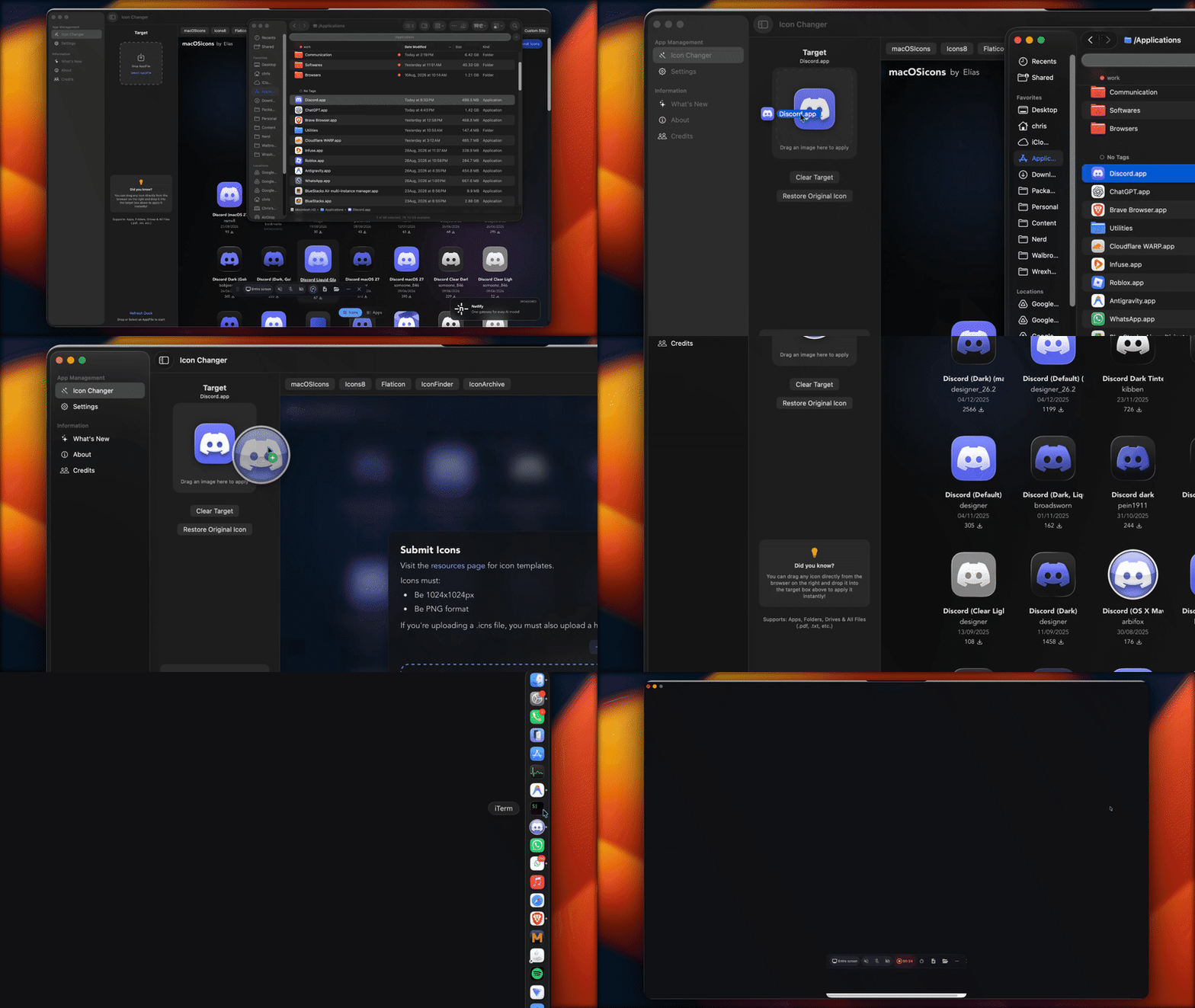
Icon Changer.app. - Select Target: Drag the file or application you want to modify and drop it into the Target zone on the left sidebar.
- Find an Icon: Browse the built-in repositories on the right.
- Apply:
- Drag & Drop: Click and drag any image from the web view directly over the Target zone to apply it instantly.
- One-Click: Click the download button on any
.icnsfile to have it applied automatically.
- Troubleshooting: If the icon doesn't update in your Dock immediately, click the Refresh Dock button in the sidebar.
Icon Changer relies entirely on official, safe macOS APIs rather than potentially dangerous shell scripts or hacky workarounds.
- Native macOS Integration: When you apply an icon, the app utilizes
NSWorkspace.shared.setIcon(), an official Apple protocol that safely writes the image data into the file's extended attributes (or into a hiddenIcon\rfile for folders). - Instant Cache Invalidation: The macOS Finder is notorious for aggressively caching file icons, which often results in customized icons refusing to show up until the computer is restarted. To solve this without requiring a restart, Icon Changer explicitly updates the internal modification timestamp of the target (and its parent directory) and pings the system via
noteFileSystemChanged(). This safely forces macOS to instantly redraw the new icon visually across your entire operating system.
Lead Developer: wako69420
This app integrates with the best icon repositories on the web to make customization seamless:
- macOSIcons - A massive community-driven repository of macOS icons. Thanks to the community and developers.
- Icons8 - High-quality design assets and Mac icons.
- Flaticon - Great repository for minimal folder and UI icons.
- IconFinder - Search engine for premium and free icons.
- IconArchive - Huge database of app and system icons.
- English
Please refer to our Privacy Policy.
This project is licensed under the MIT License - see the LICENSE file for details.
Pull requests are welcome! If you'd like to add more icon sources, improve the UI, or add features, feel free to fork this repository and submit a PR.